
Customer bills, receiving and receipts
Billing and invoicing software that keeps customer balances clear
Create a customer invoice, check its products and quantities, record the amount received and review the remaining balance. DistributorFlow connects the saved bill to the customer record, so a new sale and a later payment remain understandable to your team.
See the current packages and allowances before you choose.
Inside the application
See the product screens
Real application views rendered with sample records. Select a screenshot to see it at full size.
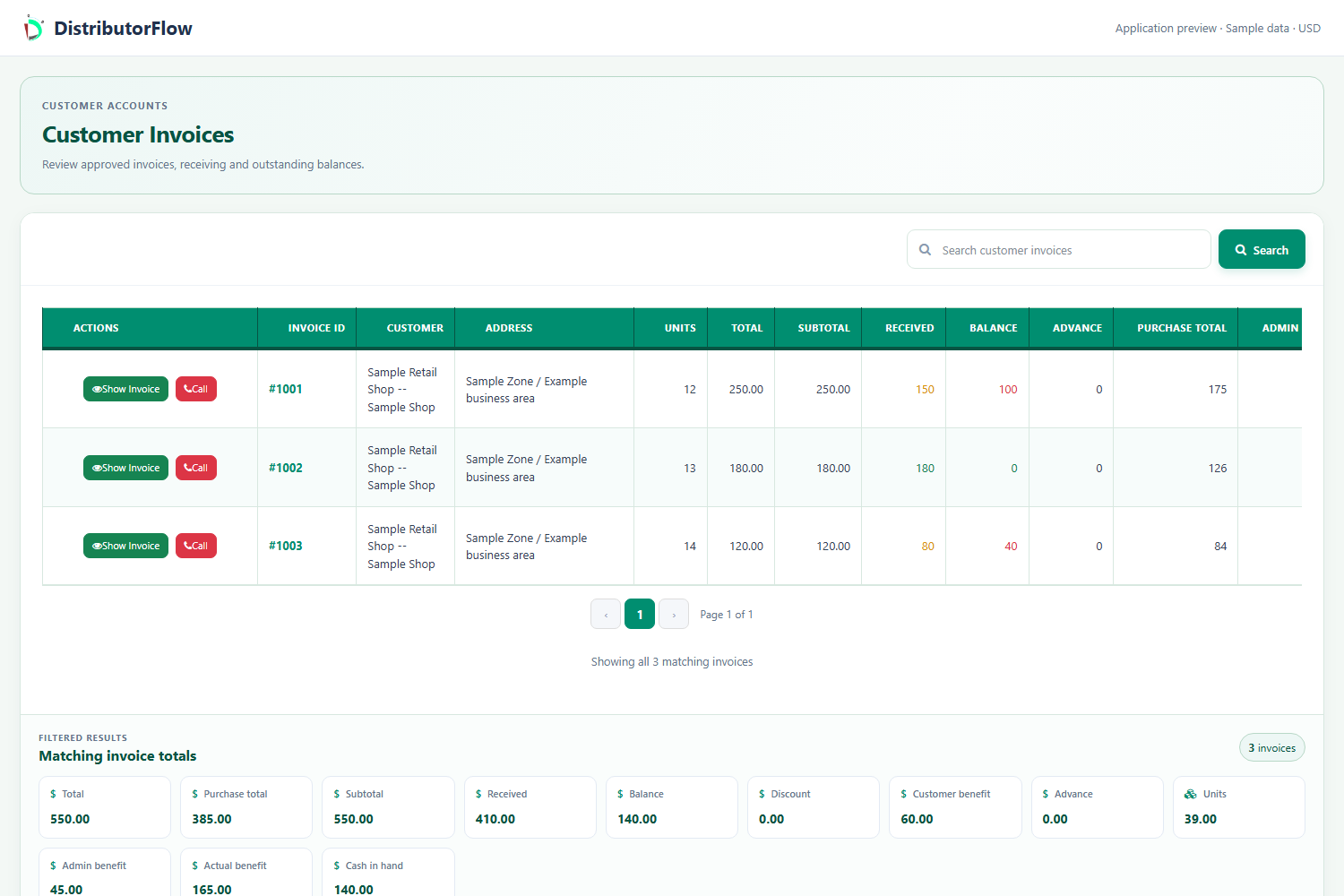
Which billing screen should you use?
Use customer invoices for the invoice and customer-balance workflow, POS for counter sales, and distribution orders for work that needs booking, approval and delivery. A stock invoice records goods added or removed; it is a different record from a customer sales bill.
| Task | Record to review | What to check |
|---|---|---|
| Bill a customer | Customer invoice | Products, quantities, receiving and the remaining amount |
| Complete a counter sale | Saved POS sale and receipt | Selected customer or shop account, quantities and receiving |
| Supply a shop through a salesman | Distribution order | Approval, assignment, delivery outcome and collection |
| Receive stock into an account | Stock invoice | Account, quantity, purchase rate and stock approval |
How do you create a customer invoice?
Select the intended customer, add the products and quantities, and check the rates and subtotal. Review any previous balance displayed by the invoice workflow, enter the actual receiving and any agreed discount, then save. Inspect the saved result and its approval state before using it as a final record.
Choose the customer
Check the shop name and account before adding products. Similar shop names should not result in a bill against the wrong customer.
Review the goods
Confirm units, quantities and prices. An agreed customer price and permission to buy a product are separate settings.
Record the payment
Enter money actually received. Keep a discount separate from cash so collections remain explainable.
Check the saved bill
Review the customer, totals, previous balance and status. Print the saved document when the details are correct.
How does a previous customer balance affect a bill?
The customer invoice workflow can carry the previous balance into the next invoice. Review the new goods separately from that carried balance. A payment reduces what is owed; it does not create another sale. Do not add together every historical running balance as though each was a new debt.
This example excludes taxes and other adjustments. Check your own saved invoice and customer ledger before collecting a balance. Your customer invoice records and distribution-order records should be reviewed in the context of the workflow that created them.
| Component | Sample amount |
|---|---|
| Previous balance | 500 |
| New goods | 1,200 |
| Agreed discount | 100 |
| Actually received | 900 |
| Remaining amount: 500 + 1,200 - 100 - 900 | 700 |
Can you print bills and POS receipts?
The application provides invoice printing and supported POS receipt views, including a thermal-receipt workflow for distribution POS. Test your actual printer, browser, paper width and receipt settings with a saved sample before using it at a busy counter.
A printed sales bill is not proof of an electronic tax submission or bank settlement. Confirm any FBR, ZATCA, card-terminal or other regulated integration separately; these connections are not advertised as included in this workflow. Package-purchase invoices belong to your DistributorFlow subscription records, rather than customer sales.
Product answers
Is receiving the same as a discount?
No. Receiving records money collected. A discount reduces the sale amount according to the agreed terms. Entering a discount as receiving overstates cash collected.
Does opening the print view create another sale?
Use the saved invoice or POS receipt to print the existing transaction. Check the saved reference and avoid entering the same goods again merely to obtain another copy.
Does this page describe DistributorFlow subscription billing?
No. It describes customer sales invoices, receiving and receipts inside the application. The pricing page explains account packages and allowances.
Your next step
Try the workflow with your own business
Start with a small product list and a trial customer. Check stock, delivery, receiving and any local requirements before a wider rollout.