
From a request to a recorded result
Order management software for booking, assignment and delivery
DistributorFlow connects the people who book shop orders with the office and the salesman completing the delivery. Keep the customer, product quantities, approval, assignment and receiving understandable throughout the order's lifecycle.
See the current packages and allowances before you choose.
Inside the application
See the product screens
Real application views rendered with sample records. Select a screenshot to see it at full size.
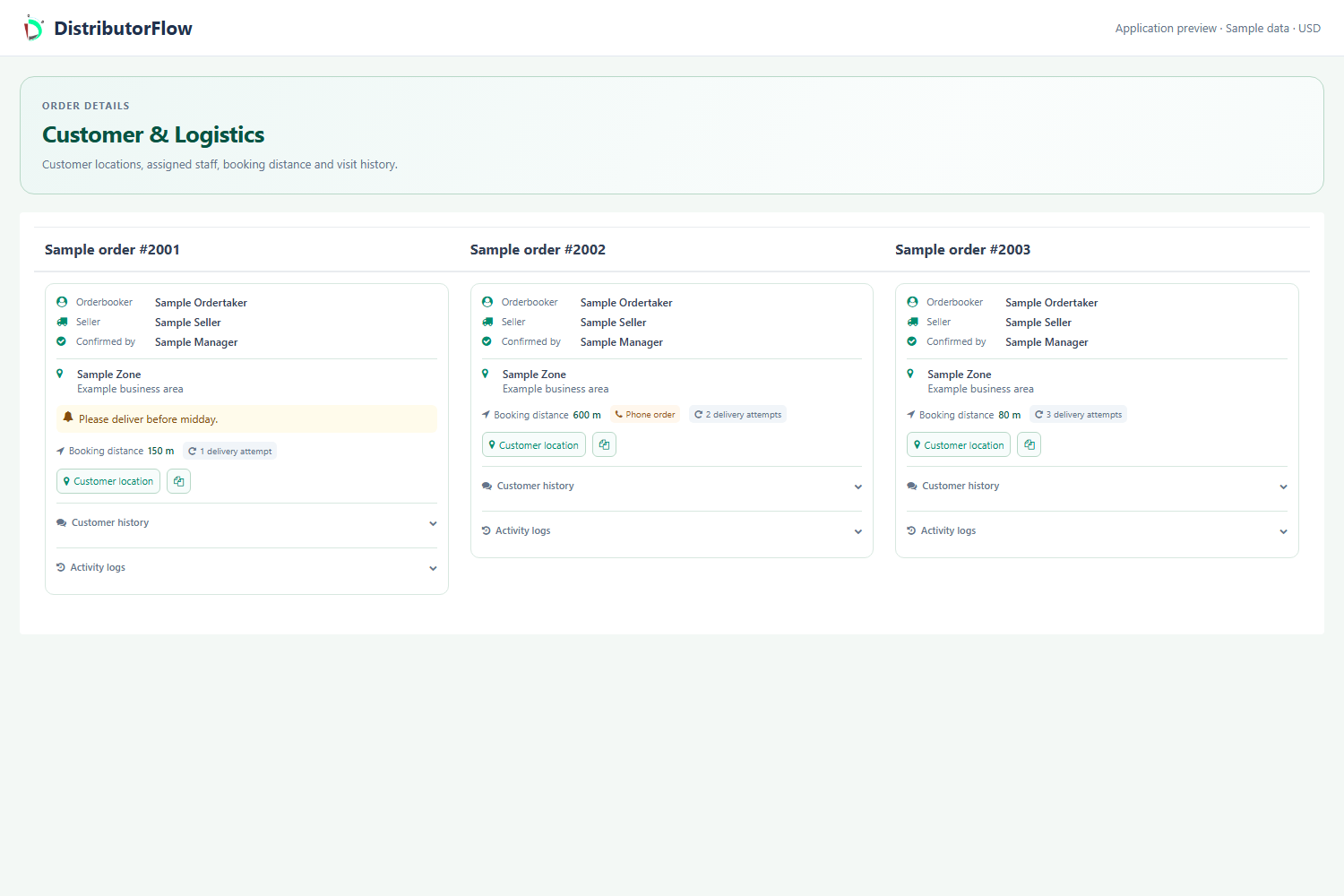
How does an order enter the distribution workflow?
An authorised administrator or order taker selects the customer, adds products and quantities, reviews adjustments and saves the order. A customer account can also send a distribution order through its permitted workflow. Check the actual saved result before retrying a failed or uncertain request.
Which orders are automatically approved?
Administrator and order-taker orders follow the distribution owner's auto-approval setting. With it disabled, they remain for review; with it enabled, the system attempts the normal approval workflow after creation. Customer-created distribution orders still require review. POS has its own sale workflow.
Only the administrator changes the auto-approval setting. An enabled setting does not turn a validation or approval failure into success; use the saved order link or the appropriate order workspace to check where the record went.
What do assignment, packing, delivery and receiving mean?
These states describe different parts of the work. Use the order list and the applicable preview to check selected records before a processing or permanent approval action. Keep the actual visit and collection information accurate after the customer interaction.
| Event | What it establishes |
|---|---|
| Booking | The products and quantities requested |
| Seller assignment | Who is responsible for the selected work |
| Packing | The goods have been prepared in the recorded workflow |
| Delivery outcome | What happened at the customer visit |
| Receiving | The amount actually collected |
| Permanent processing | The selected records were reviewed and the resulting invoice/stock workflow completed as reported |
How can the office follow up on unfinished work?
Filter the order workspace to the relevant seller, customer and period. Check warnings, edited details and the latest saved status before acting. Review a failed delivery separately from a pending order without a recorded visit, and compare remaining amounts with the customer's invoice and ledger.
Product answers
Can several team members use their own accounts?
The documented workflow includes distribution administrators, permitted managers, order takers, salesmen and customer accounts. Each account uses its allowed work areas and actions; a role name alone does not grant all administration access.
Does order booking work offline because POS does?
Offline POS is a separately prepared counter-sale workflow. Do not assume that an arbitrary order-booking, approval or map screen works offline.
Your next step
Try the workflow with your own business
Start with a small product list and a trial customer. Check stock, delivery, receiving and any local requirements before a wider rollout.