
Restaurant, cafe and takeaway counters
Restaurant POS software for clear counter sales and receipts
Record counter sales for a restaurant, cafe or takeaway with DistributorFlow POS. Maintain the items you sell, select quantities, check discounts and actual receiving, then save and print the receipt. Keep each sale connected to product and customer records.
See the current packages and allowances before you choose.
Inside the application
See the product screens
Real application views rendered with sample records. Select a screenshot to see it at full size.
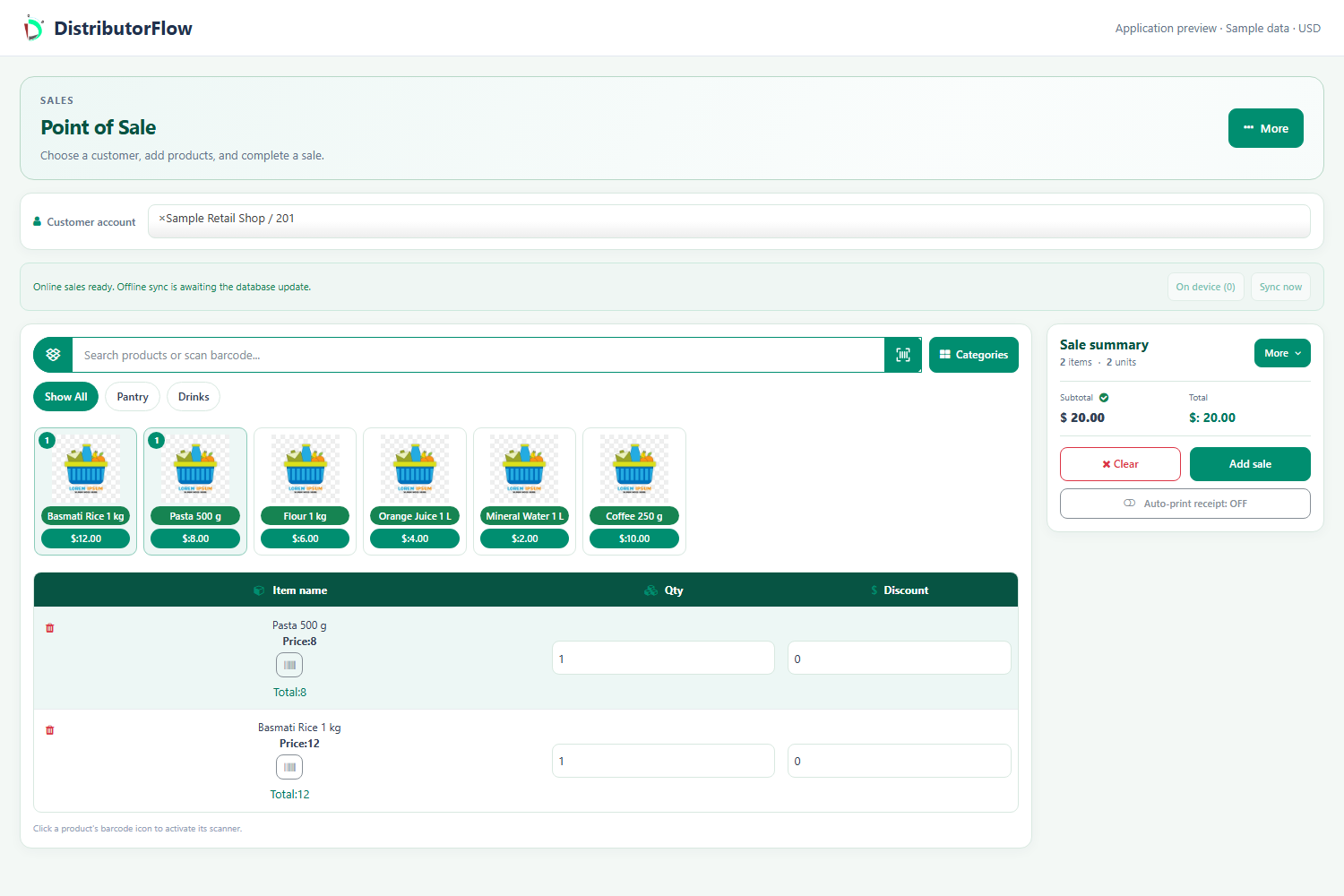
How do you record a cafe or takeaway sale?
Select the customer context required by the POS, add the items and quantities, and review the final amount. Record actual receiving and save once. Wait for the saved result before printing the receipt or moving to the next customer.
These sample amounts demonstrate the calculation; they are not current menu prices. Use your own business currency and actual prices.
| Item | Quantity | Sample amount |
|---|---|---|
| Counter item A | 2 at 300 | 600 |
| Drink B | 1 at 100 | 100 |
| Total and receiving | 700 received | 0 remaining |
What does this restaurant counter workflow cover?
It covers product-based counter sales, saved receipts, stock records and customer balances. Dedicated dine-in table management, kitchen order tickets, a kitchen display, split-table billing and recipe costing are not included in this release. Match the supported counter workflow to the service your business actually provides.
What should you test before your first service?
Try the menu items you intend to sell, one changed quantity, a discount and the receipt on your actual printer. Check a cash sale against the received amount. If offline counter sales are required, prepare and test the supported POS online first and reconcile the queued sale after reconnecting.
Product answers
Does receipt printing send a kitchen ticket?
The documented print workflow produces the saved-sale receipt. It does not provide a separate kitchen order ticket or kitchen-display workflow. Test the receipt layout with your intended printer.
Can a cafe owner review customer balances?
The customer and invoice records connect sale amounts with receiving and remaining balances. Use the intended account and period, and keep a promised payment separate from money actually collected.
Your next step
Try the workflow with your own business
Start with a small product list and a trial customer. Check stock, delivery, receiving and any local requirements before a wider rollout.