
Shops and retail counters
Retail POS software that connects each sale to your records
DistributorFlow helps shop owners keep product selection, sale quantities, receiving and receipts in one counter workflow. Use your product catalogue with stock and customer records so a cash sale and a sale with an outstanding amount remain easy to distinguish.
See the current packages and allowances before you choose.
Inside the application
See the product screens
Real application views rendered with sample records. Select a screenshot to see it at full size.
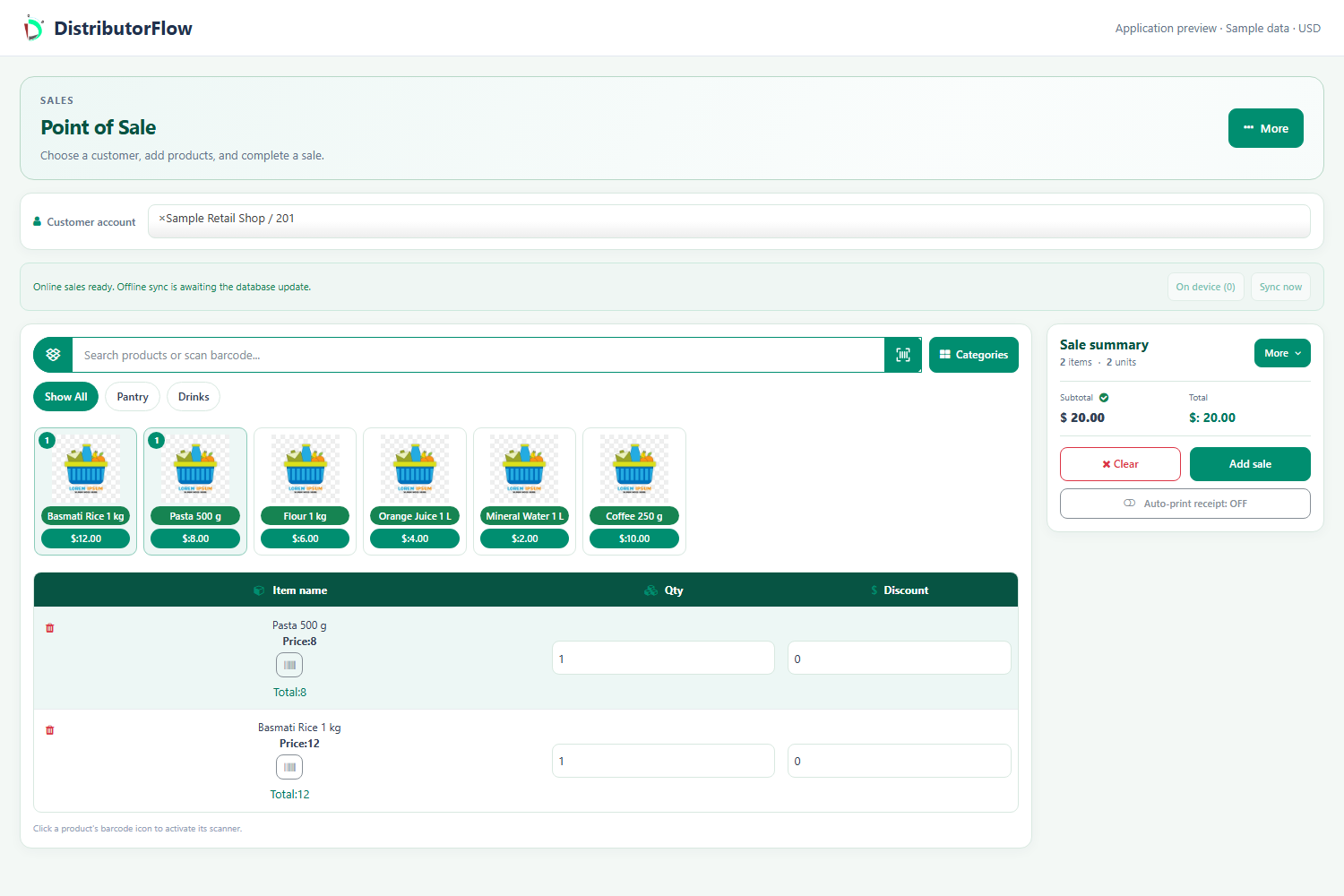
What can a shop do at the point of sale?
Find an item by search, category or an exact unique product barcode, add the quantity and check the sale totals. Review any discount and the amount actually received before saving. Print the saved receipt when the device and printer are ready.
- Keep sizes or variants under distinct product names.
- Scan the product again to increase its quantity in the supported POS workflow.
- Check the customer selected for distribution POS.
- Review the saved result before starting another sale.
How do products and stock stay understandable?
Set up categories, product names, prices and units before recording the stock you receive. Creating a product does not add stock by itself. Review the chosen stock account and the appropriate processing or approval-based stock report when comparing a quantity with your shelf count.
This can support the basic catalogue and counter-sale workflow of a general store, grocery shop or other retailer. Choose one clear sales unit for each record; a carton and an individual item must not be entered as the same quantity.
How do you record a retail credit sale?
Keep the sale total separate from receiving. In an illustrative sale of 1,200 with 900 collected and no other adjustments, the remaining amount is 300. Record a later collection against the correct balance once, rather than entering the goods as another sale.
How should you test a retail setup?
Prepare two or three products, a small stock entry and the account you will use at the counter. Test a cash sale, a partial payment and the printed receipt. For offline selling, prepare the supported POS online on the same device first and review queued sales after reconnecting.
Product answers
Can the shop use a phone for POS?
The web POS adapts to phone and desktop screens. Camera barcode scanning requires a supported browser, HTTPS and camera permission. Test receipt printing with the device and printer you intend to use.
Is a customer shop POS the same as distribution POS?
They serve different accounts. A customer shop records its own retail sales, while distribution POS uses the distribution customer and permitted products. Their confirmation and serial-handling rules can differ.
Your next step
Try the workflow with your own business
Start with a small product list and a trial customer. Check stock, delivery, receiving and any local requirements before a wider rollout.